Social comments
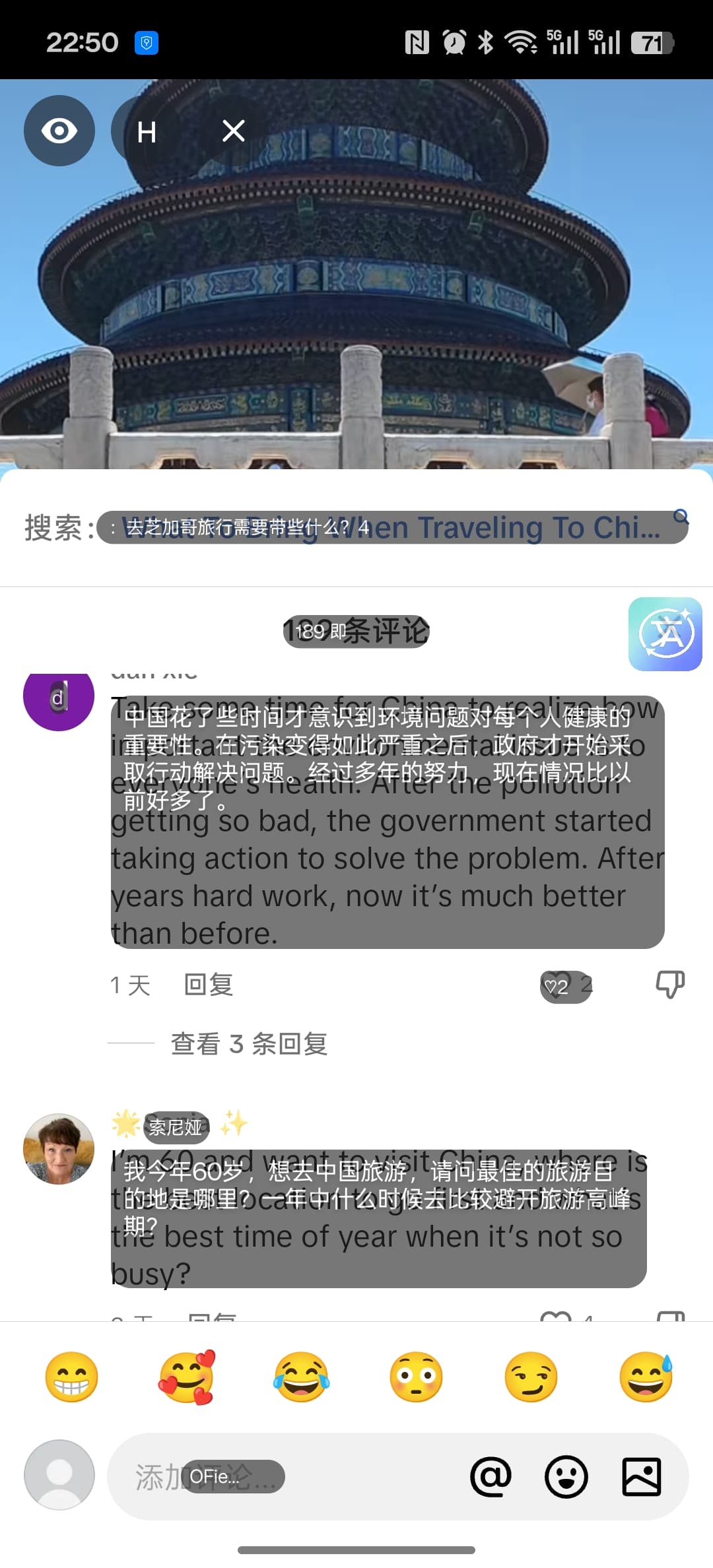
Translate directly over short-form conversations
Keep the original context visible while reading comments and replies.
 HandyXlateAndroid Screen TranslationA cleaner way to translate what is already on your screen.
Tap the floating bubble, capture one frame, run OCR, and place translated blocks back on top of what you are reading.
Made for reading, lookup, and quick replies. Single-shot by default, with optional auto-translation for a selected region when you need it.
Free users get a monthly online translation quota before upgrading to Premium.
Trust boundary: Some apps still block capture with FLAG_SECURE, so screen translation may not work there.
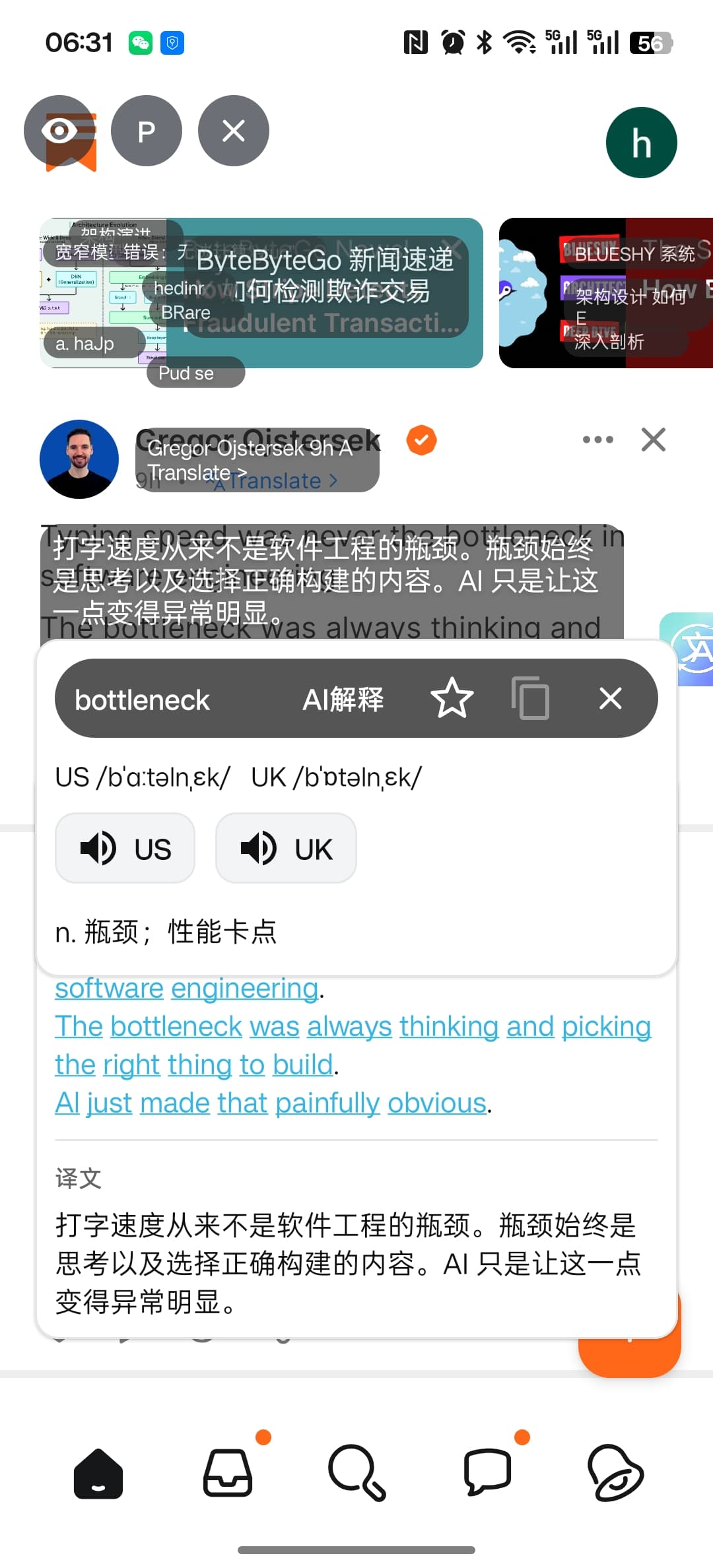
Current Android screenshots across comments, long-form reading, word lookup, and manga translation.
Keep the original context visible while reading comments and replies.
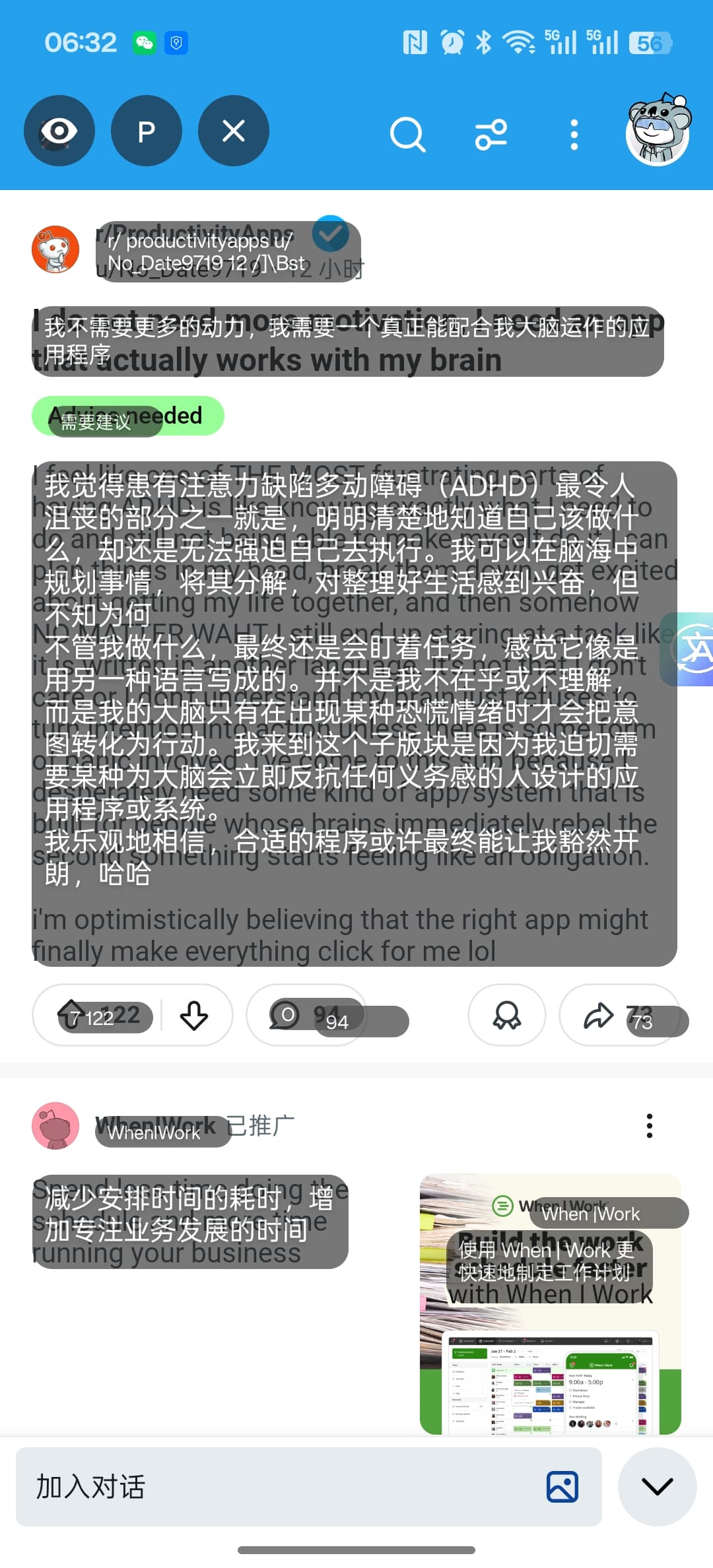
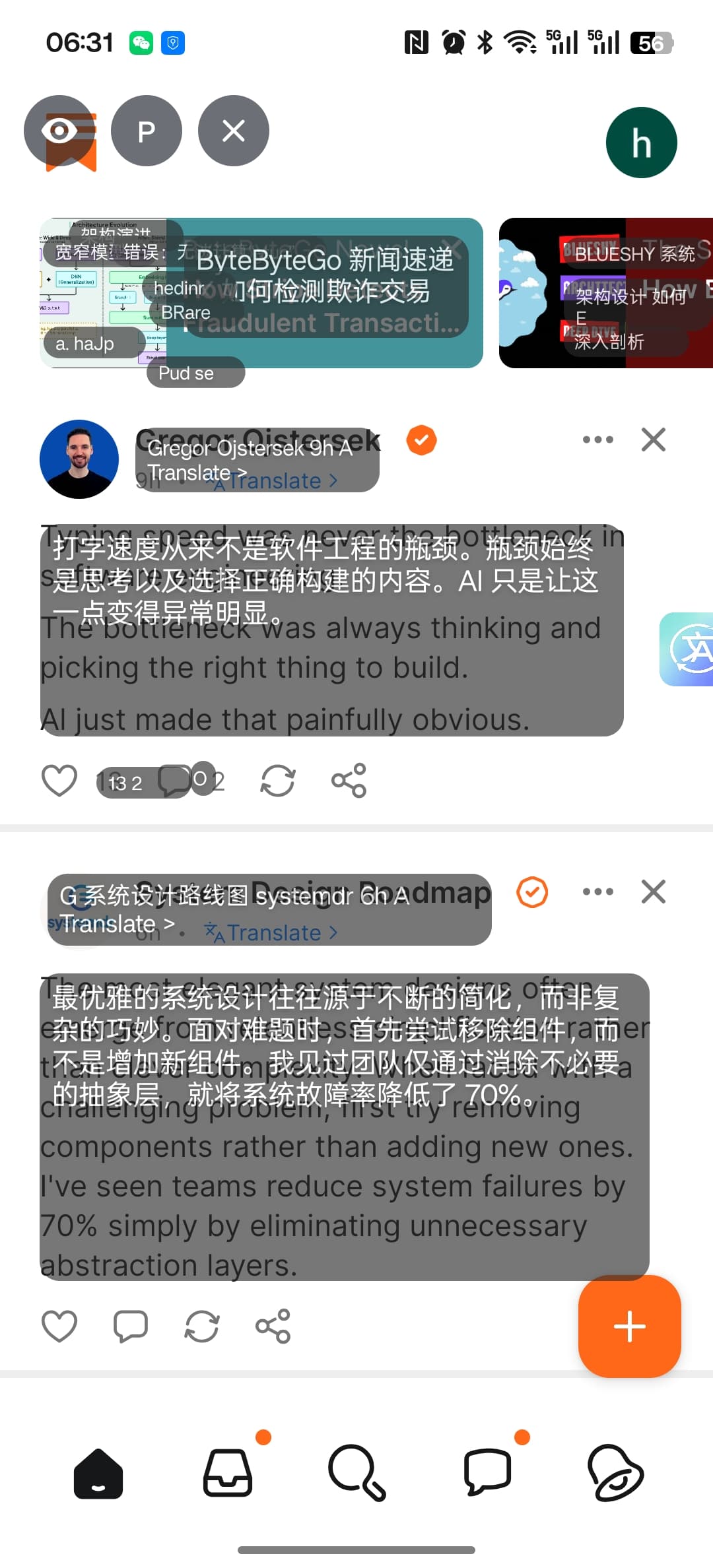
Single-shot OCR works on reading-heavy screens without forcing an app switch.
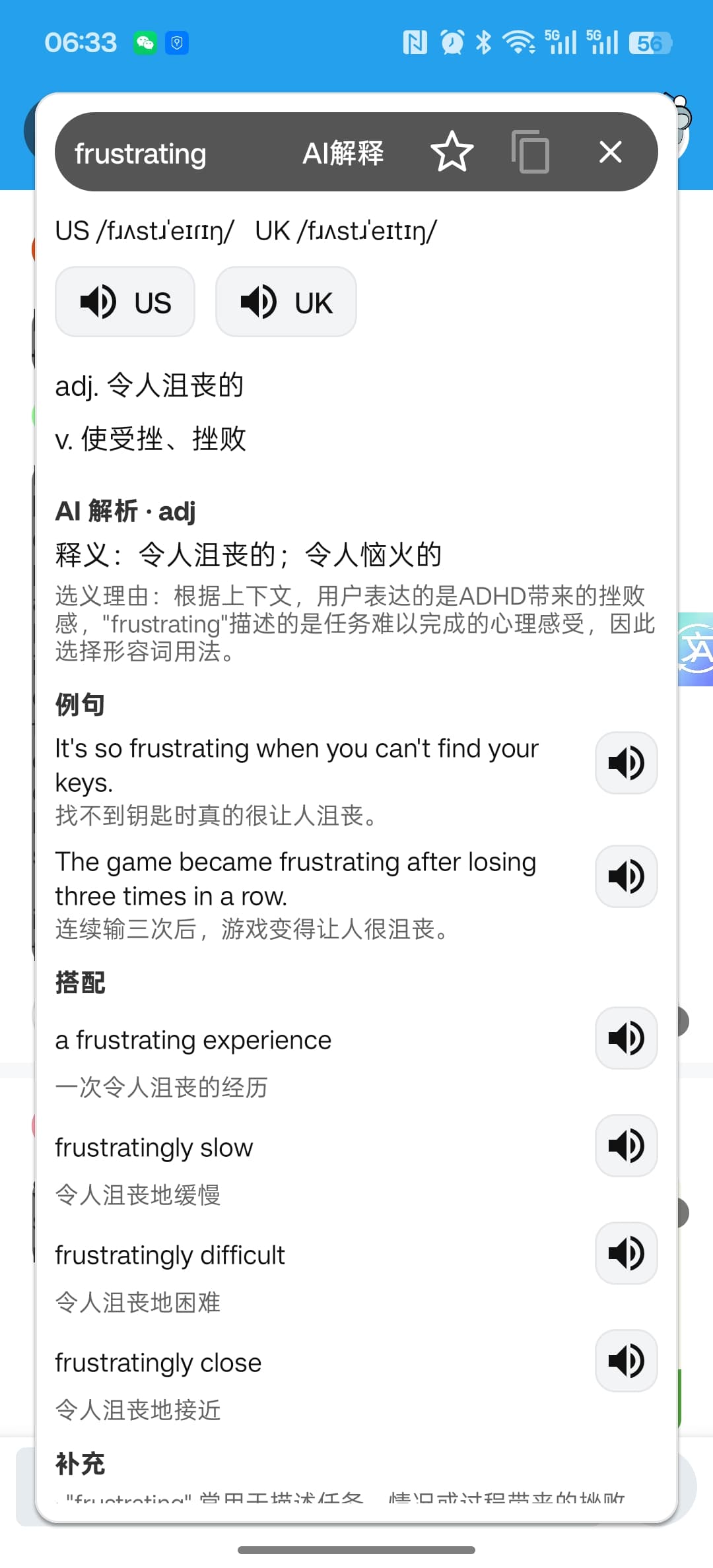
Dictionary and AI Explain stay close to the translated text instead of breaking the flow.
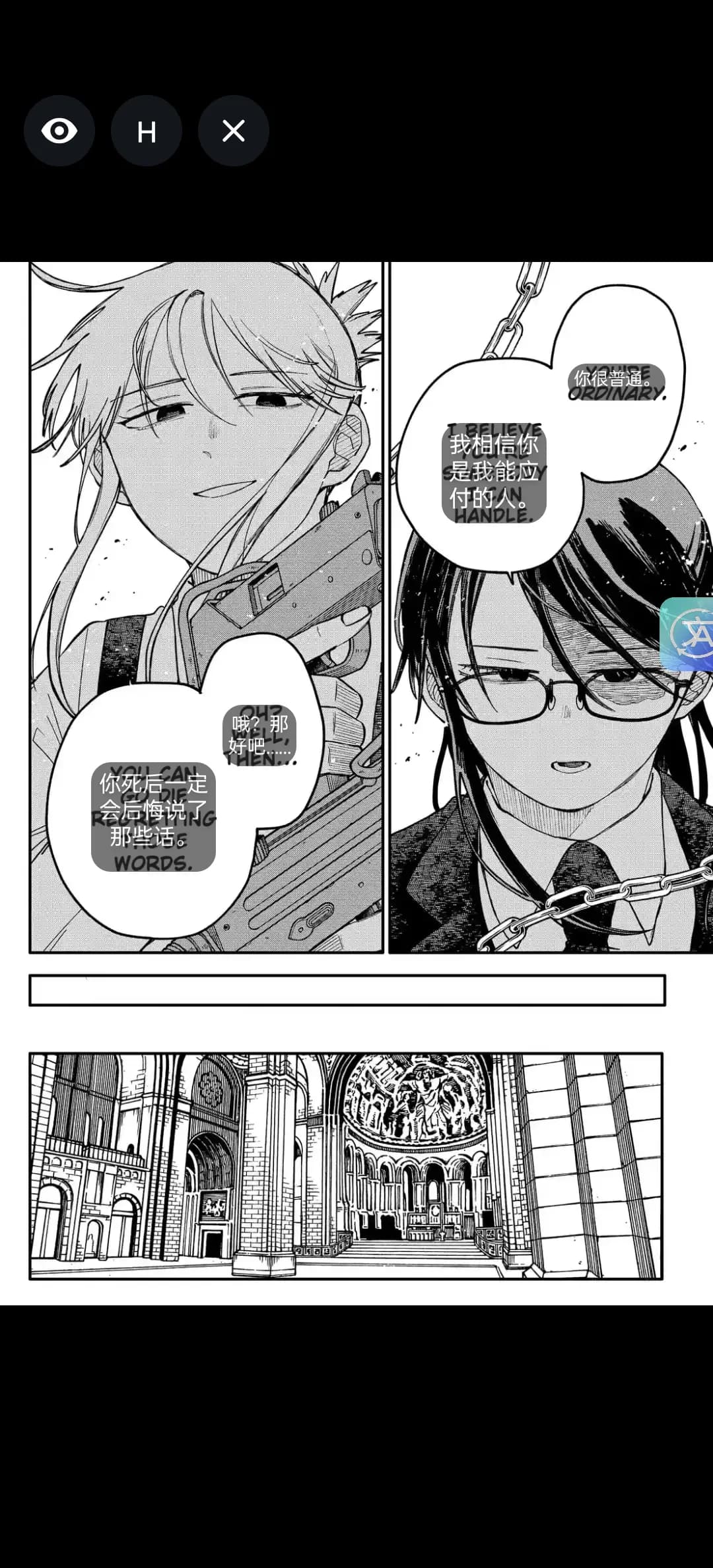
Speech-bubble scenes stay readable without flattening the original layout.
Learn the most practical Android workflow for translating visible on-screen text without turning every task into copy and paste.
Capture once, translate once — no always-on overlays, no noisy automation. Built for reading and quick understanding.
Tap the floating bubble to take one screenshot frame for text recognition. No background scanning.
OCR runs on-device. We don’t upload the screenshot — only recognized text is used for translation.
We translate the OCR text and render translated blocks back on top of the screen — then you can copy or save.
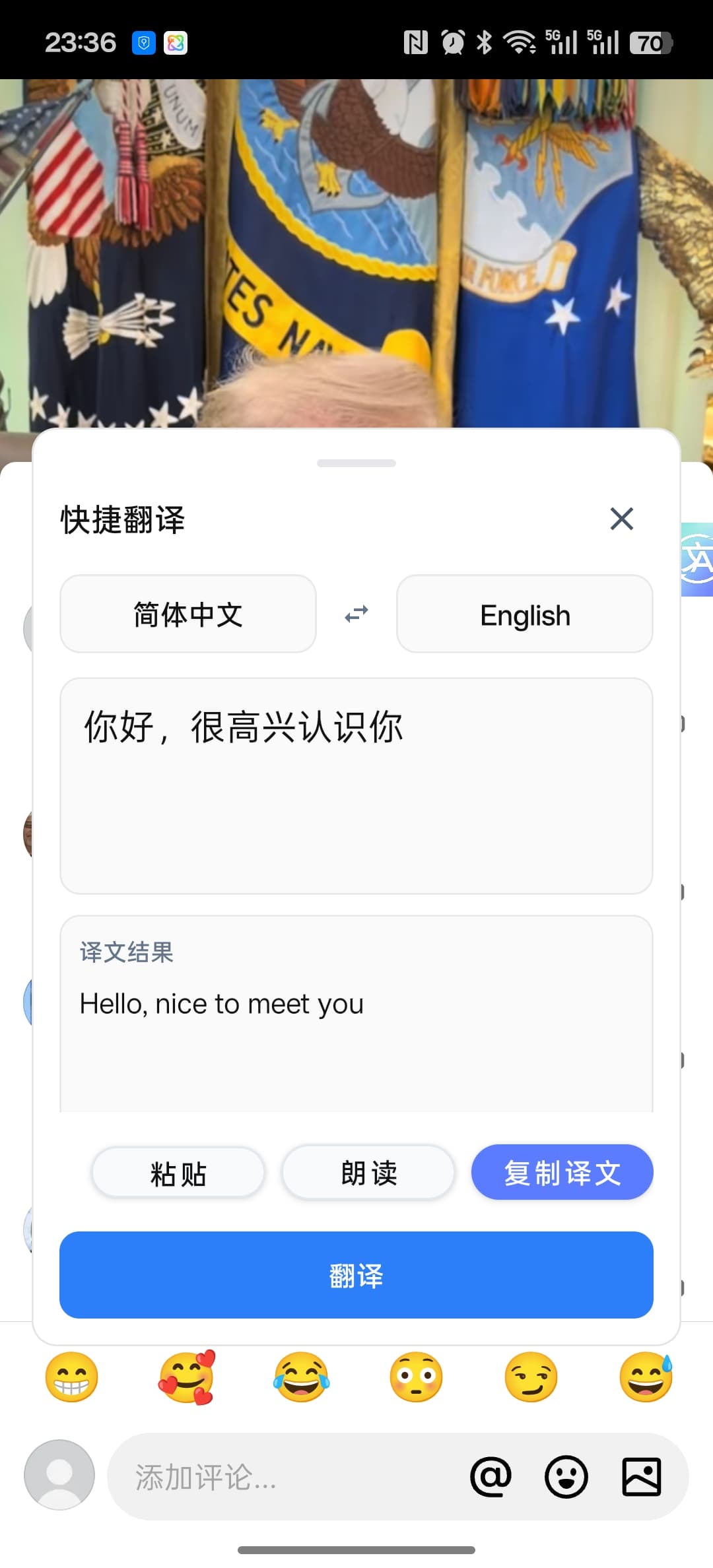
When you do not need OCR, open Quick Translate from the bubble menu, paste or type text, translate it, then copy the result back into chat, email, or comments.
Clear boundaries included
No. HandyXlate does not require an Accessibility Service. It uses screen capture permission for OCR.
To read on-screen text, we capture a single frame for OCR. Screenshots are not uploaded; only recognized text is used for translation.
Some apps enable FLAG_SECURE or similar protections that block screen capture. On those screens, HandyXlate may not be able to read text.
The current build supports 16 screen OCR source languages and 19 translation target languages. Common options include English, Simplified and Traditional Chinese, Japanese, Korean, Spanish, French, German, Italian, Portuguese, Hindi, Vietnamese, Turkish, Polish, Dutch, and Indonesian. Translation targets also include Russian, Arabic, and Thai.
Yes. Free users get a monthly online translation quota, and Premium adds AI translation plus higher limits.
Open the Play listing to install the Android app and start translating text directly on your screen.
Google Play


